Does the HDD spin when you plug it in?
If not try a different USB port. Plug into a port with a blue plastic interior or an "SS" (SuperSpeed) icon. These ports supply up to 900mA of power, compared to older USB 2.0 ports which only supply 500mA.
Check Device Manager for any errors (yellow warning triangle). Right-click it and select Update driver > Search automatically for drivers.
If the drive is hidden or malfunctioning, right-click the device under Disk drives or USB controllers, select Uninstall device, unplug the SATA adapter/enclosure, and restart your computer so Windows reinstalls the driver automatically.
To prevent Windows from turning off the USB port to save power, right-click your USB root hub/controller in Device Manager, go to Properties > Power Management, and uncheck "Allow the computer to turn off this device to save power".
Even if the drive has power, Windows won't show it in File Explorer if it lacks a drive letter or uses an incompatible file system (like a Mac or Linux format).
Right-click the Start button and select Disk Management.
Scroll down the bottom half of the window to see if you spot a disk matching your drive's storage capacity.
If it shows "Unallocated" or "Unknown/Not Initialized": The drive needs a partition map or a new format.
If it shows "RAW": The file system is corrupted. You will likely need data recovery software (like Recuva or TestDisk) to pull the files off before formatting it to NTFS or exFAT.


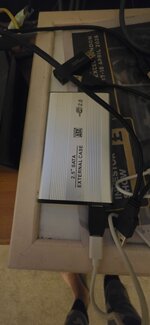


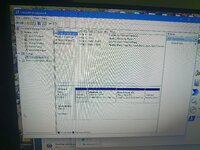

 but working.. my ssd usb portable is recognised straight away..
